

Essential Tips For Website Backup and Security Automation
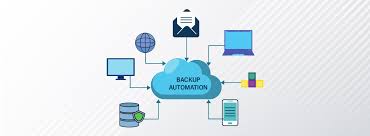
In today’s digital world, ensuring that your website is both secure and backed up is critical to your business’s success. Website downtime, data loss, or security breaches can result in significant financial and reputational damage. Automating website backups and security measures is a proactive way to protect your online presence. By leveraging the right tools and techniques, you can ensure your website is consistently backed up, up-to-date, and secure without constant manual intervention. In this article, we’ll explore essential tips for automating website backups and security, helping you safeguard your business’s digital assets efficiently.
Why Automating Website Backups and Security is Essential
Automating website backups and security is not just a luxury; it’s a necessity. Manual backups are often neglected or forgotten, leaving websites vulnerable to data loss due to server crashes, hacks, or other unforeseen issues. Security threats, from malware infections to brute force attacks, are also ever-present, and manual interventions can only do so much to stop them.
By automating these processes, you can ensure that your website data is always protected, your security protocols are up-to-date, and you are prepared for any emergency. Automation helps reduce human error, save time, and allows you to focus on more important business tasks.
1. Set Up Automatic Website Backups
Regular website backups are one of the most important steps you can take to protect your website’s data. Whether it’s an unexpected technical issue or a security breach, having a backup ensures you can restore your website quickly.
How to Automate:
- Choose Backup Software: Use automated website backup plugins or services (e.g., Updraft Plus , Back WP up for WordPress) to schedule daily, weekly, or monthly backups.
- Cloud Storage: Store backups in cloud services like Google Drive, Dropbox, or Amazon S3. Cloud storage offers easy access and offsite security, ensuring that backups are safe even if your server fails.
- Multiple Backup Versions: Automate multiple backup versions to ensure that if one backup is corrupted, you can restore from an earlier version.
Example: Imagine your website experiences a server crash or a security breach. With automated backups running daily, you can quickly restore your site to its most recent state, minimizing downtime and preventing the loss of important content.
2. Automate Security Scanning and Monitoring
Security breaches are one of the biggest threats to any website. From hacking attempts to malware, having automated security scanning and monitoring is essential for proactively identifying vulnerabilities.
How to Automate:
- Install Security Plugins: Tools like Wordfence (for WordPress) or Sucuri can automatically scan your website for malware, vulnerabilities, and suspicious activities. These tools can also send you real-time alerts if any threats are detected.
- Firewall Protection: Web Application Firewalls (WAFs) like Cloudflare can be set up to automatically block malicious traffic and prevent DDoS (Distributed Denial of Service) attacks. These systems constantly monitor and adapt to threats, offering 24/7 protection.
- Automated Security Updates: Enable automatic updates for your website’s software, plugins, and themes. Many CMS platforms, like WordPress, allow for automatic updates to patch known security vulnerabilities.
Example: If a hacker attempts to access your website using a brute force attack, an automated security plugin will block their IP address and alert you to the attempted intrusion. This automatic protection ensures that your website is secure without you needing to intervene manually.
3. Schedule Regular Security Audits
Regular security audits are crucial for identifying potential vulnerabilities before they can be exploited by malicious actors. While manual audits are time-consuming, automation tools can streamline this process.
How to Automate:
- Automated Security Audits: Use tools like Site Lock or Security Ninja to run scheduled security checks that scan for vulnerabilities like outdated software, open ports, or weak passwords.
- Audit Reports: Set up automated audit reports to be emailed to you regularly, so you are always aware of any potential security risks.
Example: Automated audits can flag outdated plugins that might have unpatched vulnerabilities. With scheduled checks, you’ll receive alerts on which areas need attention, allowing you to fix problems before they are exploited.
4. Implement Two-Factor Authentication (2FA)
Two-factor authentication (2FA) provides an extra layer of security when accessing your website’s admin dashboard. It ensures that even if a hacker obtains your password, they still cannot access your site without the second authentication factor.
How to Automate:
- Enable 2FA Plugins: Use plugins or built-in CMS features to set up 2FA. Once activated, users must enter both their password and a code sent to their phone or email to log in.
- Automated Enforcement: Set up 2FA to be required for all users, particularly those with administrative privileges, preventing unauthorized logins.
Example: If your website’s admin credentials are leaked, 2FA prevents attackers from gaining access without the secondary authentication factor. This makes brute force attacks much more difficult.

5. Automate Database Optimization
Website databases can become bloated over time with unused data, spam, or temporary files. Automated database optimization ensures that your website runs smoothly by keeping the database clean and efficient.
How to Automate:
- Database Cleanup Plugins: Use plugins like WP-Optimize for WordPress to automatically clean up your database, removing post revisions, spam comments, and other unnecessary data.
- Scheduled Optimizations: Set up scheduled tasks for database optimization, ensuring it runs on a regular basis without manual intervention.
Example: Automating database optimization can improve your website’s speed and performance, which is especially important for e-commerce sites that need to load quickly to enhance user experience and conversion rates.
6. Establish Automated Alerts for Critical Issues
Being immediately aware of any critical issues is vital in maintaining the security and health of your website. Setting up automated alerts ensures that you are notified of any problems before they escalate.
How to Automate:
- Alert Systems: Use tools like Pingdom or Uptime Robot to automatically notify you of any website downtime or performance issues.
- Critical Issue Alerts: Set up email or SMS alerts for important events like failed backups, security breaches, or excessive traffic spikes.
Example: If your website goes offline due to a security attack or server issue, an automated alert will notify you immediately, allowing you to take action before the issue affects users.
Conclusion
Automating website backups and security is crucial for keeping your website safe, functional, and performing at its best. By setting up automated backups, security scans, 2FA, and more, you ensure that your website is protected from potential threats without the constant manual effort. Automation not only saves time and reduces human error but also enhances your website’s overall security, allowing you to focus on growing your business.
If you haven’t already, it’s time to start automating your website’s backups and security. Explore the tools and strategies mentioned above to secure your digital assets and keep your website running smoothly, even in the face of unforeseen challenges.
