

“Automated Hosting Setup Guide

In today’s fast-paced digital world, managing a website can be both time-consuming and overwhelming. One of the key aspects of efficient website management is hosting, and automating hosting tasks can significantly improve performance and reduce the burden of manual interventions. If you’re wondering how to streamline your website’s hosting, this complete guide to setting up automated hosting for your website is here to help. Automation not only saves you time but also enhances your website’s security, speed, and uptime. In this article, we’ll walk you through the key steps and best practices for setting up automated hosting, so you can focus on growing your business without worrying about the technical details.
1. Understanding Automated Hosting
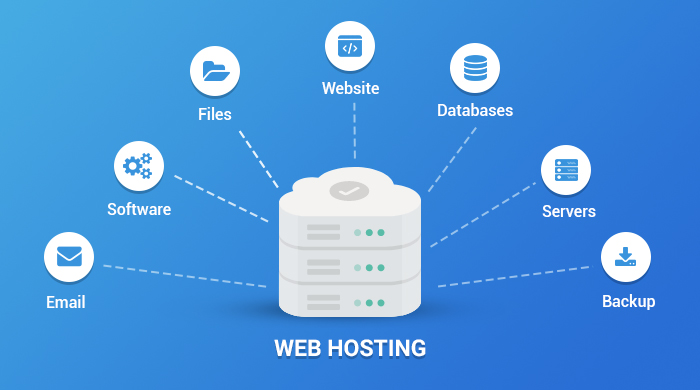
Automated hosting refers to the use of software, tools, and platforms that automate tasks related to hosting a website, such as server management, backups, security monitoring, and performance optimization. This means that routine tasks are handled automatically, reducing the need for manual intervention. Automated hosting allows businesses to focus on their core objectives while ensuring the smooth operation of their websites.
Why Automate Hosting?
- Time-saving: With automation, tasks like backups, security updates, and server management are done for you, freeing up your time.
- Reduced human error: Automation ensures tasks are done consistently and accurately, minimizing the risk of mistakes.
- Increased uptime: Automated monitoring and performance optimization help ensure your website is always available for visitors.
2. Choosing the Right Hosting Provider
The first step in setting up automated hosting is selecting the right hosting provider. Many modern hosting companies offer automated features that simplify website management. Some hosting options that provide automated tools include:
- Managed Hosting: Hosting services like WP Engine and Kinsta offer fully managed hosting solutions that automatically handle updates, backups, and security patches.
- Cloud Hosting: Cloud platforms such as AWS, Google Cloud, and Microsoft Azure provide automated scaling, backups, and load balancing to ensure optimal performance.
- VPS Hosting: Virtual private servers (VPS) with automation tools like cPanel or Plesk allow for more control and customization while automating core server management tasks.
What to Look For in an Automated Hosting Provider?
- Automated Backups: Ensure your provider offers regular and automated backups.
- Automatic Updates: Look for hosting services that automatically update your website’s software and security patches.
- Uptime Monitoring: Choose providers that include automated monitoring to ensure your website stays live without any downtime.
3. Setting Up Automated Backups
One of the most essential tasks in website hosting is backing up your data. Automated backups ensure that your website’s files, databases, and content are stored securely and can be restored in case of an issue.
How to Automate Backups:
- Use Backup Plugins: Tools like UpdraftPlus or BackupBuddy for WordPress automate backups on a schedule, either daily, weekly, or monthly.
- Cloud-Based Backups: Set up automated backups to cloud services like Google Drive, Dropbox, or Amazon S3 for easy access and recovery.
- Test Your Backups: Ensure that automated backups are running correctly by performing periodic test restores to verify the integrity of the backup.
Example: If your website experiences a crash due to a server malfunction or hack, automated backups will allow you to restore the latest version of your site without losing data.
4. Automating Security and Updates
Keeping your website secure and up-to-date is crucial to prevent breaches and downtime. Automation can ensure that security patches, software updates, and virus scans are performed regularly.
How to Automate Security:
- Automatic Security Updates: Enable automatic updates for your website’s software, plugins, and themes. Many CMS platforms like WordPress support this feature.
- Security Plugins: Use plugins like Wordfence (for WordPress) or Sucuri to automatically monitor for security threats, malware, and unauthorized access attempts.
- Web Application Firewall (WAF): Services like Cloudflare provide automated WAF that filters and blocks malicious traffic to protect your website.
Example: Automated security updates ensure your website is always protected from known vulnerabilities. If a critical security patch is released, your website will update automatically, reducing the chances of exploitation by cybercriminals.
5. Performance Optimization Through Automation
Website speed is critical for user experience and search engine rankings. Automating performance optimization tasks helps ensure your website runs smoothly without manual interventions.
How to Automate Performance Optimization:
- Caching Solutions: Implement automated caching solutions like Cloudflare or WP Rocket to improve page load times by serving static content.
- Image Optimization: Use automated tools such as Smush or ShortPixel to compress and optimize images for faster loading speeds.
- Content Delivery Network (CDN): Set up a CDN like Cloudflare or StackPath to automatically deliver content from servers located closer to your visitors, improving site speed.
Example: With automated image optimization, your website’s images are compressed and resized on the fly, ensuring fast load times without requiring you to manually optimize each image.
6. Automating Uptime Monitoring
Ensuring your website stays live is crucial for your business. Automated uptime monitoring alerts you immediately if your website experiences any downtime, allowing you to address the issue before it impacts users.
How to Automate Uptime Monitoring:
- Monitoring Services: Tools like Pingdom, UptimeRobot, and StatusCake can automatically monitor your website’s uptime and send real-time alerts via email or SMS if the site goes down.
- Scheduled Reports: Set up daily or weekly reports to monitor uptime statistics and track any downtime trends that need attention.
Example: If your website goes down during peak hours, an uptime monitoring tool will alert you instantly, allowing you to restore the site and minimize the loss of visitors.
7. Scaling Your Website Automatically
If your website experiences traffic spikes, it’s important to have automated systems in place that can scale your resources to meet the demand. Hosting providers that offer cloud-based solutions often provide auto-scaling capabilities.
How to Automate Scaling:
- Cloud Hosting Solutions: Use auto-scaling features from cloud platforms like AWS or Google Cloud to automatically adjust resources based on traffic load.
- Traffic-Triggered Scaling: Set thresholds for resource usage (CPU, memory, bandwidth) that trigger automatic scaling to ensure your website remains fast and responsive during traffic surges.
Example: During a product launch, your website may experience a sudden increase in visitors. With automated scaling, your hosting environment can dynamically adjust to accommodate the extra traffic without any manual intervention.
Conclusion
Setting up automated hosting for your website is a powerful way to improve efficiency, security, and performance while saving time and effort. By choosing the right hosting provider, automating backups, security, updates, and performance optimizations, you can ensure that your website runs smoothly without constant manual management. Automation not only reduces human error but also ensures that your website is prepared for any situation—whether it’s a traffic surge or a security breach.
If you’re ready to set up automated hosting for your website, take action now by choosing the right hosting provider and implementing the tools discussed in this guide. Automating your website’s hosting is an investment that pays off in improved site performance, enhanced security, and peace of mind.
